Where to use the assistant
You can interact with the C1 AI assistant in two places:- In the C1 web app — Click Ask C1AI in the bottom-right corner of any page.
- In Slack — Once the C1 app for Slack is installed, you can DM the assistant from Slack.
Open the assistant
Click Ask C1AI in the bottom-right corner of any page in C1.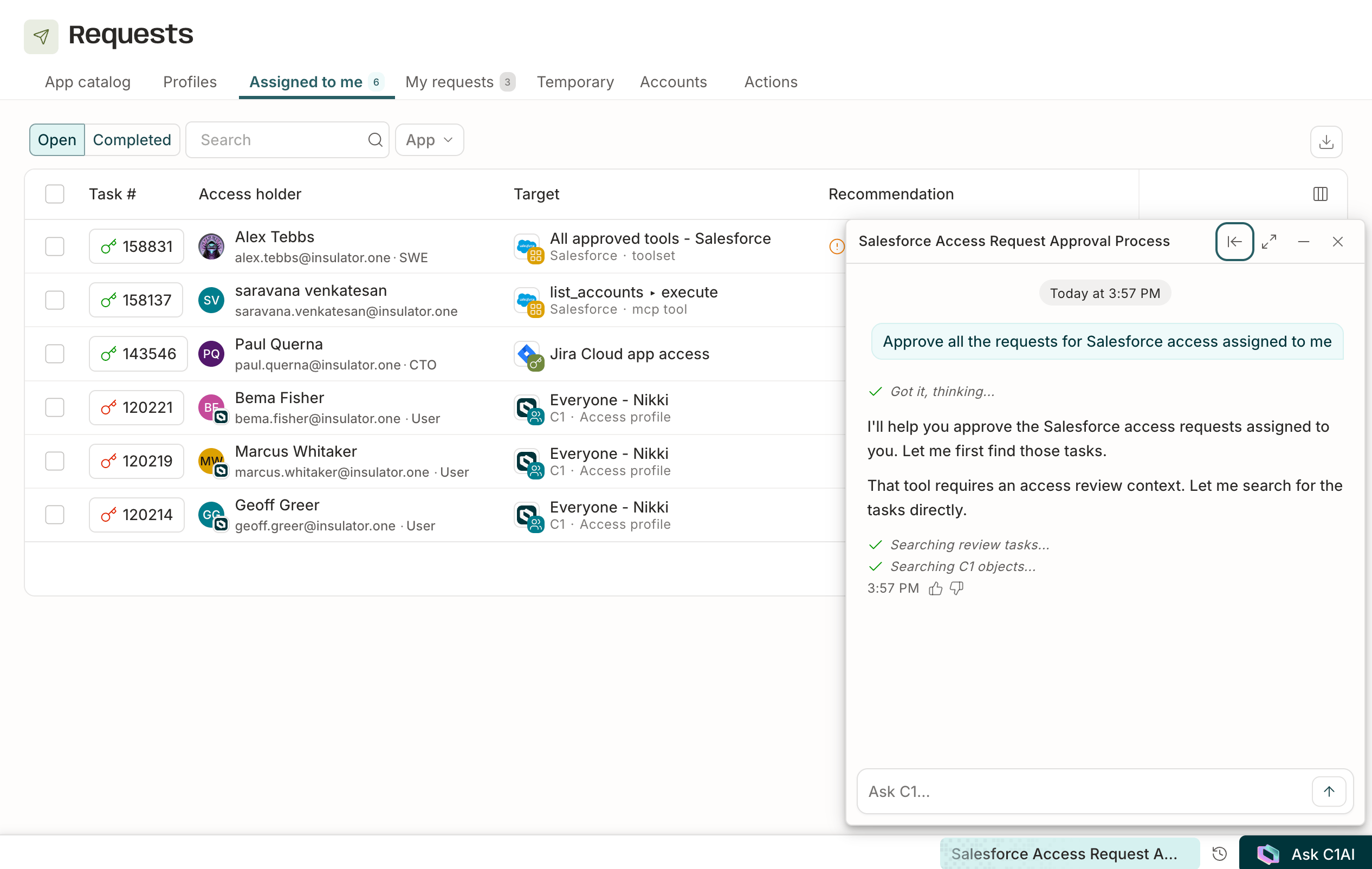
Ask questions and take action
Type any question or request in the Ask C1… field and press Enter. Ask it anything about your org’s access data: who has access to what, how your organization is structured, what’s in your entitlement catalog, and more. Because the assistant has access to the same C1 data your role permits you to see — including IdP-sourced information about your org — it can reason across that data to answer questions that might otherwise require navigating multiple views. You can also ask for data in a specific format — for example, “give me a CSV of everyone with admin access” — and the assistant generates a downloadable file (CSV, JSON, PDF, or plain text) with the link appearing directly in the chat.Generate visual reports
Ask a reporting question and C1AI can respond with charts, stat cards, and tables instead of just a file download. Ask for multiple charts side by side — for example, “dashboard: grants trend and users by status side by side” — and they render together as an aligned grid, each with its own export option and list of sources. C1AI can also compose a full report in one response: aggregate stat cards, a trend chart, and a data table together, each showing the sources it was built from.Verify report sources with Data lineage
Every report component shows a sources row citing what the assistant used to build it. Click View lineage to open the Data lineage drawer, where you can see:- The exact query behind each source, and its row count
- Whether each source was verified against the assistant’s own execution log, shown as Verified or Unverified
- The full list of tool calls the assistant made to build the report
- Approve, deny, reassign, or escalate access requests
- Manage access and entitlements
- Configure campaigns and conflict monitors
- Build policies
Page context
When you open the assistant from a specific page in C1 — an application, a policy, an entitlement, and so on — the assistant pulls in context about that page and its related objects. A chip at the bottom of the chat panel shows what’s in context. Use the toggle next to it to include or exclude that context from the conversation.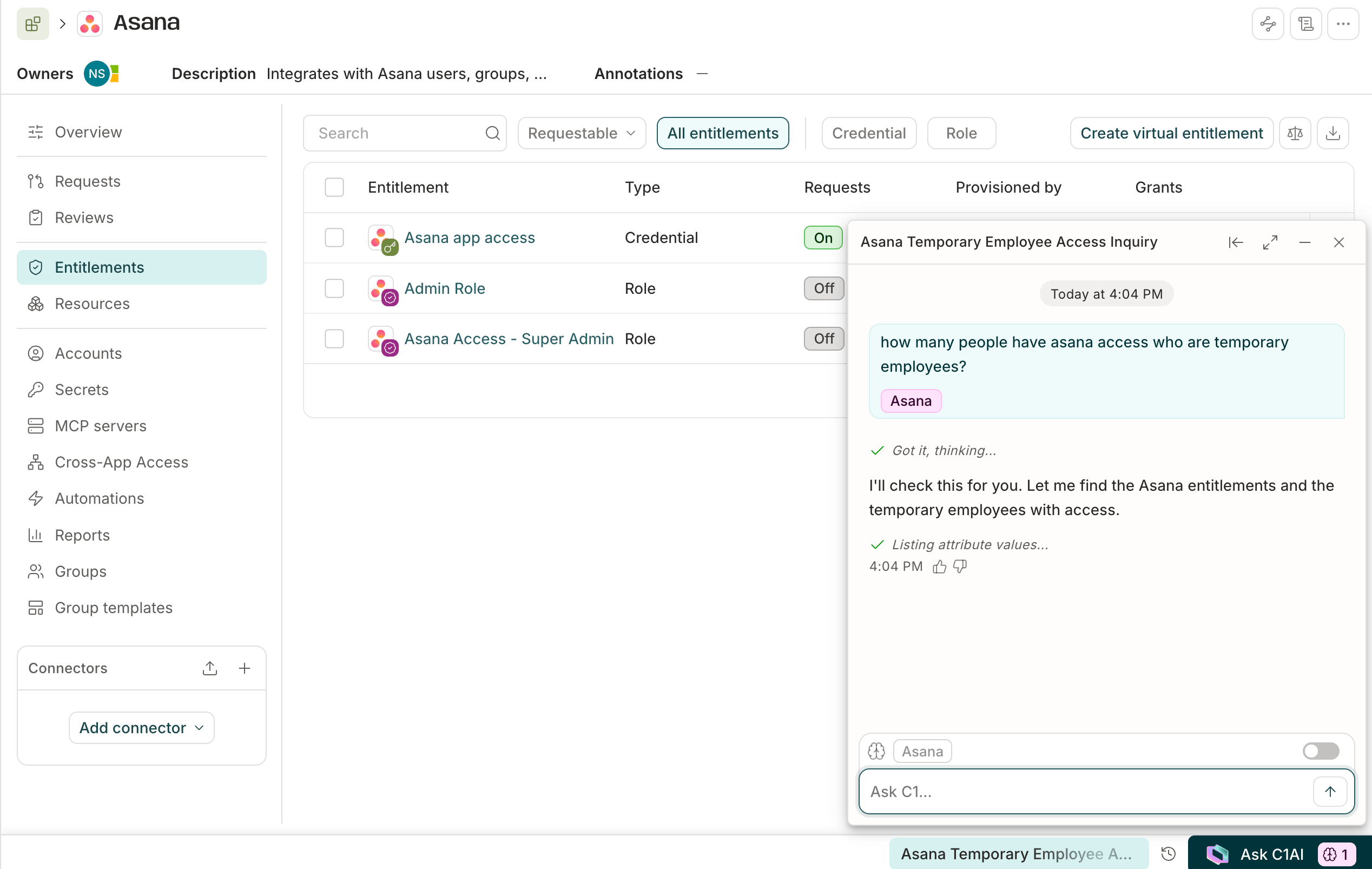
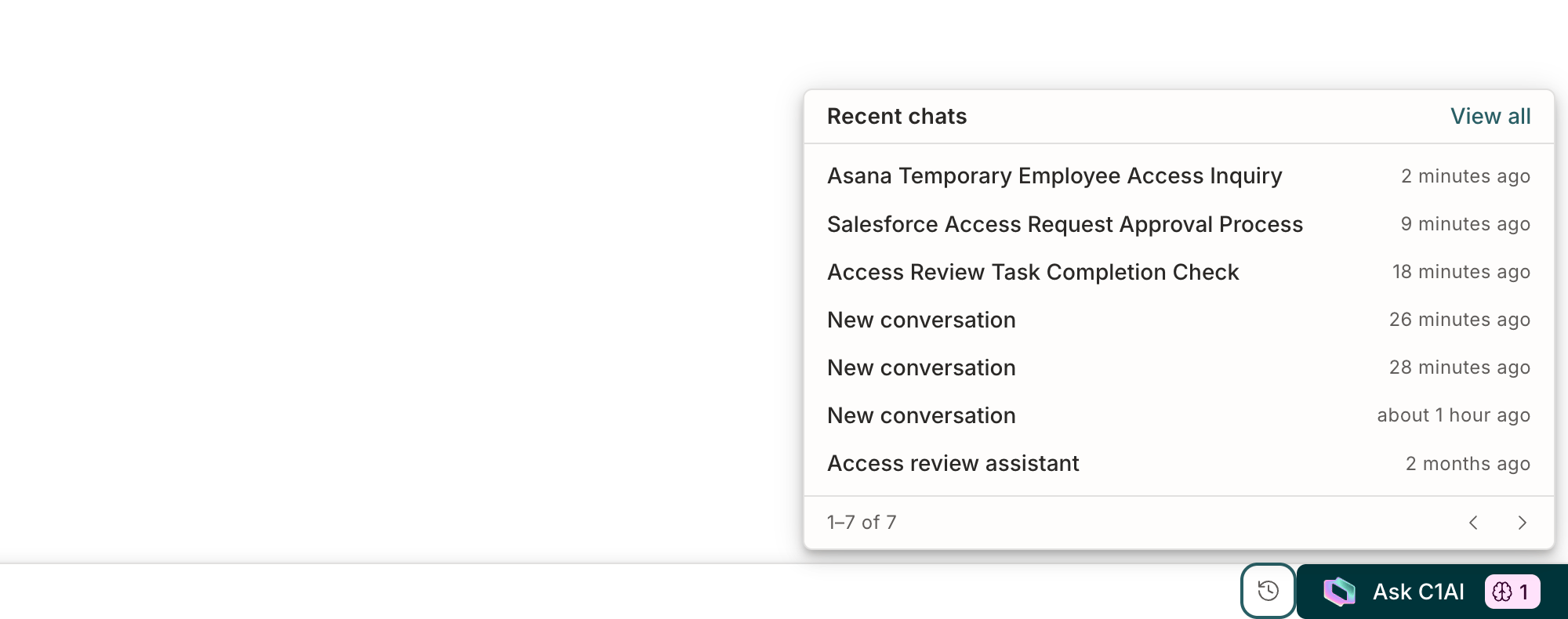
Return to a previous conversation
Click the history icon in the toolbar at the bottom right of the screen to open the Recent chats panel. Click any conversation in the list to reopen it, or click View all to see your full chat history.